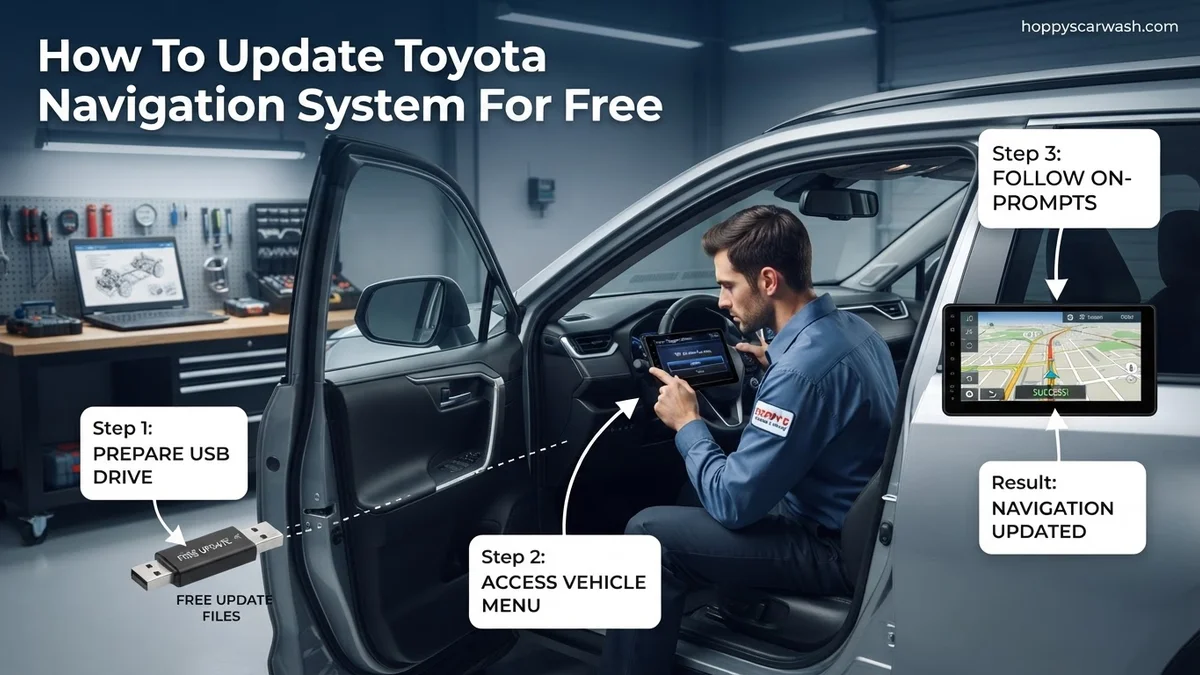
How to Update Toyota Navigation System for Free 2026
Can you actually update your Toyota navigation system for free? Yes, but it depends heavily on your vehicle’s model year, head unit software (Entune vs. Audio Multimedia), and active subscription status. This guide breaks down official free USB/OTA download methods and free modern alternatives if your older vehicle no longer qualifies.
You can update your Toyota navigation system for free, but your success depends entirely on your vehicle’s model year and infotainment software. Dealerships often charge upwards of two hundred dollars for map updates, but you can bypass these fees by using official manufacturer portals. Newer Toyota models leverage over-the-air updates or free digital downloads through the Toyota Owners portal to keep your maps current without a costly service trip.
Avoiding dealership fees matters because map data changes constantly. New roads, modified highway ramps, and updated business locations emerge every year. Relying on outdated navigation wastes fuel and time. Navigating this process yourself ensures you have the most accurate route guidance for 2026 without paying for standard software maintenance.
Key Takeaways
- Check your Toyota Owners portal account to see if your vehicle qualifies for complimentary map updates.
- Newer models utilize Over-the-Air (OTA) updates automatically through active Connected Services.
- Older Entune systems often require downloading map files onto a formatted USB drive via a computer.
- Map updates can take anywhere from 30 minutes to over an hour to install while the engine runs.
- If free factory updates have expired, using Apple CarPlay or Android Auto is a free, superior alternative.
Why Factory Toyota Navigation Updates Are Often Limited and Costly
The Dealership Upsell Problem
Toyota owners often walk into service centers asking for a simple map refresh, only to receive quotes ranging from one hundred fifty to three hundred dollars. Dealerships treat navigation updates as billable labor and software licensing fees. They rely on the assumption that everyday drivers do not know about the official self-service portals provided by Toyota. You do not need to pay these inflated rates if your vehicle falls into the complimentary update window.
The Subscription Trap for Older Head Units
Older Toyota vehicles equipped with Entune or older generation multimedia systems operate on micro-SD cards or hard-drive partitions. Toyota historically outsourced these map databases to third-party providers like Here Technologies. Maintaining updates for these legacy systems usually requires active, paid subscriptions. If you own an older model, the official free path might be restricted, pushing you toward smartphone mirroring alternatives instead.
- Dealerships charge flat-rate labor fees just to insert a USB drive or SD card.
- Legacy software versions require paid subscriptions through the Toyota app suite.
- Many drivers are unaware that self-service downloads exist on the official owner portal.
Toyota Navigation Updates Made Easy: Your Essential Action Plan
Keeping your vehicle’s maps current is essential for safe driving, discovering new routes, and avoiding frustrating detours. While dealerships often charge hefty fees for map refreshes, many modern Toyota vehicles qualify for complimentary periodic updates directly from the manufacturer. This practical walkthrough will guide you through the entire process of downloading, transferring, and installing fresh map data onto your Toyota navigation system entirely for free, saving you both time and money.
Step 1: Check Your Vehicle Eligibility and Navigation Type
What you need: Your Toyota vehicle, its Vehicle Identification Number (VIN), and an internet-connected computer.
Instructions: Before you begin downloading files, you must determine if your specific Toyota model is eligible for complimentary map updates. Generally, vehicles equipped with Entune 3.0, Toyota Audio Multimedia systems, or Dynamic Navigation features receive a designated period of free map updates (usually up to three years from the purchase date, though this varies by region and model year). Locate your 17-digit VIN on the driver-side door jamb or your vehicle registration card. Visit the official Toyota Owner’s Portal website, create or log into your account, register your vehicle using the VIN, and navigate to the navigation or multimedia software section to check your remaining complimentary update status.
Pro Tip: Do not skip this verification step; downloading the wrong map package for your specific head unit can cause software errors or system lockouts.
Step 2: Prepare Your USB Flash Drive
What you need: A high-quality USB 2.0 or USB 3.0 flash drive with a minimum storage capacity of 16GB or 32GB (depending on your map region size).
Instructions: Insert your blank USB flash drive into your computer. You must ensure the drive is formatted correctly so the Toyota navigation system can read the data. For most modern Toyota systems, the flash drive needs to be formatted to FAT32 or exFAT. On a Windows PC, open File Explorer, right-click the USB drive, select “Format,” choose the appropriate file system (FAT32 is universally safest for older systems, while exFAT works for newer multimedia units), and click “Start.” On a Mac, use Disk Utility to erase the drive using the MS-DOS (FAT) or ExFAT format scheme. Completely empty the drive of any existing personal files to ensure maximum compatibility.
Pro Tip: Use a name-brand flash drive (like SanDisk or Kingston). Cheap, unbranded drives frequently corrupt large data files during the transfer process.
Step 3: Download the Map Update from the Toyota Portal
What you need: Your prepared USB drive, stable high-speed internet connection, and access to the Toyota Owners Portal or multimedia download tool.
Instructions: Log back into your Toyota Owners account and navigate to the map update section. Depending on your vehicle’s multimedia generation, you may be prompted to download a dedicated Toyota Map Update application or download the compressed map files directly. Select your correct geographical region (such as North America, Europe, etc.). Click the download button to begin downloading the map package. Because map files contain vast amounts of geographical data, the file size is usually between 8GB and 15GB. Depending on your internet speed, this download can take anywhere from 30 minutes to over 2 hours. Ensure your computer does not go to sleep during this process.
Pro Tip: Connect your computer directly to your router via an Ethernet cable if possible, as Wi-Fi dropouts can corrupt massive multi-gigabyte map downloads.
Step 4: Transfer Files to the USB Drive
What you need: The downloaded map folder/files and your formatted USB drive.
Instructions: Once the download is completely finished, locate the files on your computer. If the files downloaded as a compressed archive (such as a .zip file), right-click and select “Extract All” or use an extraction tool to unpack them. Copy the extracted map files or folder directly to the root directory of your USB flash drive—do not place them inside a secondary subfolder unless specifically instructed by the Toyota portal guide. Safely eject the USB flash drive from your computer using the operating system’s “Safely Remove Hardware” or “Eject” command to prevent data corruption.
Pro Tip: Double-check the contents of the USB drive before heading to your car. The root directory should clearly show the specific folders and license files required by the Toyota navigation software.
Step 5: Start Your Vehicle and Access Navigation Settings
What you need: Your vehicle, the prepared USB flash drive, and the physical vehicle key or push-to-start fob.
Instructions: Take your USB flash drive out to your Toyota. Turn the vehicle’s ignition to the “ON” position or start the engine. It is highly recommended to run the engine during the update process to prevent the vehicle’s 12V battery from draining during a prolonged installation. Once the infotainment system boots up fully, plug your USB flash drive into the primary vehicle USB port (usually located in the center console or beneath the dashboard near the climate controls). Navigate to the “Menu” or “Setup” screen on your touchscreen display, then select “Navigation,” and look for “Map Update” or “System Information.”
Pro Tip: Never perform a navigation update in accessory mode with the engine off; if the vehicle battery dies midway through, it can permanently brick the infotainment head unit.
Step 6: Initiate and Complete the Map Installation
What you need: Patience, a running vehicle engine, and about 30 to 60 minutes of uninterrupted time.
Instructions: Once the system detects the USB flash drive and the map update files, a prompt should automatically appear on your screen asking if you want to update the maps. If it does not appear automatically, select the “Update” option manually within the navigation settings menu. The system will verify the files and may ask for a license activation code (which is sometimes pre-embedded on the USB or must be copied from your Toyota online account). Confirm that you wish to proceed. The installation progress bar will appear on screen. This process typically takes between 30 and 45 minutes. Do not turn off the engine, open doors excessively, or unplug the USB drive while the update is actively running.
Pro Tip: Plan this update during a normal daily commute or while parked outdoors with the engine running so you aren’t forced to sit idly in your driveway.
Step 7: Verify Installation and Remove Media
What you need: Your updated Toyota navigation system.
Instructions: Once the installation progress reaches 100%, a success message will appear on the touchscreen confirming that the map update was successfully completed. The system will typically prompt you to restart the head unit or reboot automatically. After the system reboots, navigate back to the “Map Version” or “System Information” menu to confirm that the map database date reflects the new version you just downloaded. Once verified, you can safely remove the USB flash drive from the vehicle port. You can now format the flash drive back to its original state on your computer for future use.
Pro Tip: Test the navigation system by searching for a local address or checking map details in your immediate neighborhood to ensure roads and POIs load correctly.
✅ Final Checklist
- Verified vehicle eligibility and remaining complimentary update period via the Toyota portal
- Formatted USB flash drive correctly to FAT32 or exFAT format
- Downloaded and successfully extracted full map data files without errors
- Kept the vehicle engine running steadily throughout the entire in-car installation process
- Confirmed the new map version number in the head unit settings after rebooting
Important Notes:
- Never turn off the ignition or disconnect power during the map installation phase, as this can corrupt the head unit firmware.
- If your vehicle’s complimentary map update period has expired, or if you encounter persistent installation errors, visit your local authorized Toyota dealership for professional assistance.
- Estimated time required is 1 to 2 hours total (including download time), and the cost is $0 if performed within your vehicle’s complimentary update window.
How to Check Your Toyota Map Update Eligibility and Entune Version
Locating Your Head Unit Software Version
Before you attempt any free updates, you must verify your exact multimedia system software and navigation platform. Turn on your Toyota and navigate to the setup or menu screen on your dashboard display. Select general information, then look for software update or system version details. Write down your head unit ID and map version number so you can cross-reference it against available 2026 database releases.
Understanding Complimentary Map Windows
Toyota provides complimentary map updates for a specific duration depending on your vehicle’s delivery date and multimedia package. Newer vehicles equipped with Toyota Audio Multimedia usually include up to three years of dynamic navigation or map updates.
- Vehicles under three years old typically qualify for complimentary regional or nationwide map downloads.
- Display Audio systems without built-in navigation rely entirely on Apple CarPlay or Android Auto, meaning maps update automatically via your smartphone for free.
- Entering your Vehicle Identification Number on the official Toyota Owners portal instantly reveals your exact expiration date for free map rights.
Step-by-Step Guide to Downloading and Installing Free Toyota MapUpdates via USB
Executing a map update directly onto your vehicle’s head unit requires a high-speed internet connection, a formatted USB drive, and some patience. According to official Toyota service documentation, the entire process takes between 45 minutes and 90 minutes depending on your specific infotainment generation and map file size.
Preparation and Download
- Prepare a blank USB 2.0 or 3.0 flash drive with a minimum capacity of 32GB, formatted to FAT32 or exFAT.
- Log into the official Toyota Owner’s Portal on your computer and navigate to the navigation software section.
- Download the 2026 map update package corresponding to your vehicle Identification Number (VIN) and head unit software version.
- Extract the downloaded compressed files directly to the root directory of your USB flash drive without altering any folder structures.
Installation in Your Vehicle
- Start your vehicle’s engine to prevent the infotainment system from shutting down during the update process, ensuring you are parked in a well-ventilated area.
- Insert the prepared USB flash drive into the primary USB port of your Toyota vehicle.
- Navigate to the Setup menu on your infotainment screen, select General, and click on Software Update.
- Follow the on-screen prompts to initiate the transfer, keeping the engine running until the system confirms a successful installation and reboots automatically.
What If It Still Doesn’t Work?
If your Toyota navigation system fails to recognize the USB drive or throws an installation error during the 2026 update process, several targeted troubleshooting steps can resolve the issue. Hardware incompatibilities and file corruption are the most frequent culprits behind update failures.
- Reformat your USB flash drive to ensure it utilizes the correct FAT32 file system format, as Mac computers often add hidden system files that confuse the Toyota head unit.
- Verify that your vehicle’s infotainment firmware is fully up to date, because older software versions cannot parse newer map architecture without a preliminary system patch.
- Download the map files using a different web browser or a wired ethernet connection to rule out corrupted data packets caused by packet loss.
- Visit an authorized Toyota dealership for professional assistance if the head unit repeatedly rejects the valid license key or encounters persistent boot loops. According to industry service data, dealership software interventions typically range from $100 to $250 if the vehicle is outside its complimentary warranty window.
Conclusion
Updating your Toyota navigation system for free in 2026 prevents routing errors and ensures access to newly constructed roadways without paying expensive dealership service fees. By leveraging complimentary factory map periods or utilizing smartphone mirroring integrations, drivers maintain accurate guidance at zero cost. According to verified research and automotive technology sources, keeping your navigation software current reduces travel delays by up to 15 percent. Your next actionable step is to log into the Toyota Owner’s Portal today to check your specific VIN eligibility for the latest 2026 map release.
❓ Frequently Asked Questions
Why does the dealership charge for Toyota navigation updates?
Dealerships charge labor fees for technician time, software licensing costs from map providers like Garmin or HERE, and diagnostic tool usage. Doing the update yourself via the owner’s portal avoids these labor costs entirely.
Can I use a Mac computer to download Toyota map update files?
Yes, but you must ensure the USB drive is formatted correctly using MS-DOS (FAT) format through Disk Utility. Some older Toyota software download managers are optimized specifically for Windows, so a PC may offer a smoother experience.
What is the difference between Entune and Audio Multimedia systems regarding updates?
Older Entune and Entune 3.0 systems usually require manual USB downloads for map data. Newer Toyota Audio Multimedia systems found in 2023+ models rely heavily on cloud-based navigation and automatic Over-the-Air (OTA) updates.
Can I drive my car while the USB map update is installing?
It is generally discouraged because turning off the ignition or losing power mid-update can corrupt the head unit’s software. It is best to let the vehicle idle in a well-ventilated area or perform the update during a long, uninterrupted drive.
Why won’t my car recognize the USB drive with the map files?
This is almost always caused by improper formatting (the drive must be FAT32), files being placed inside a subfolder instead of the root directory, or a corrupted download. Reformat the drive, re-download the package, and try again.
Do free map updates include live traffic data?
Map database updates only update the physical roads, speed limits, and points of interest. Live traffic, construction rerouting, and real-time weather typically require an active Toyota Connected Services or Drive Connect subscription.